1 The package list
Open it from Licenses › Validate Licenses. This interface is used to synchronize SoftwareCentral with the install count from the SCCM. This feature requires that Software Metering is set up on the SCCM server.
The grid displays all packages. It won't show License Groups. Each package in a license group is listed on its own, and its name ends with (Member of License Group 'name'). Each package in a license group must be synchronized individually.
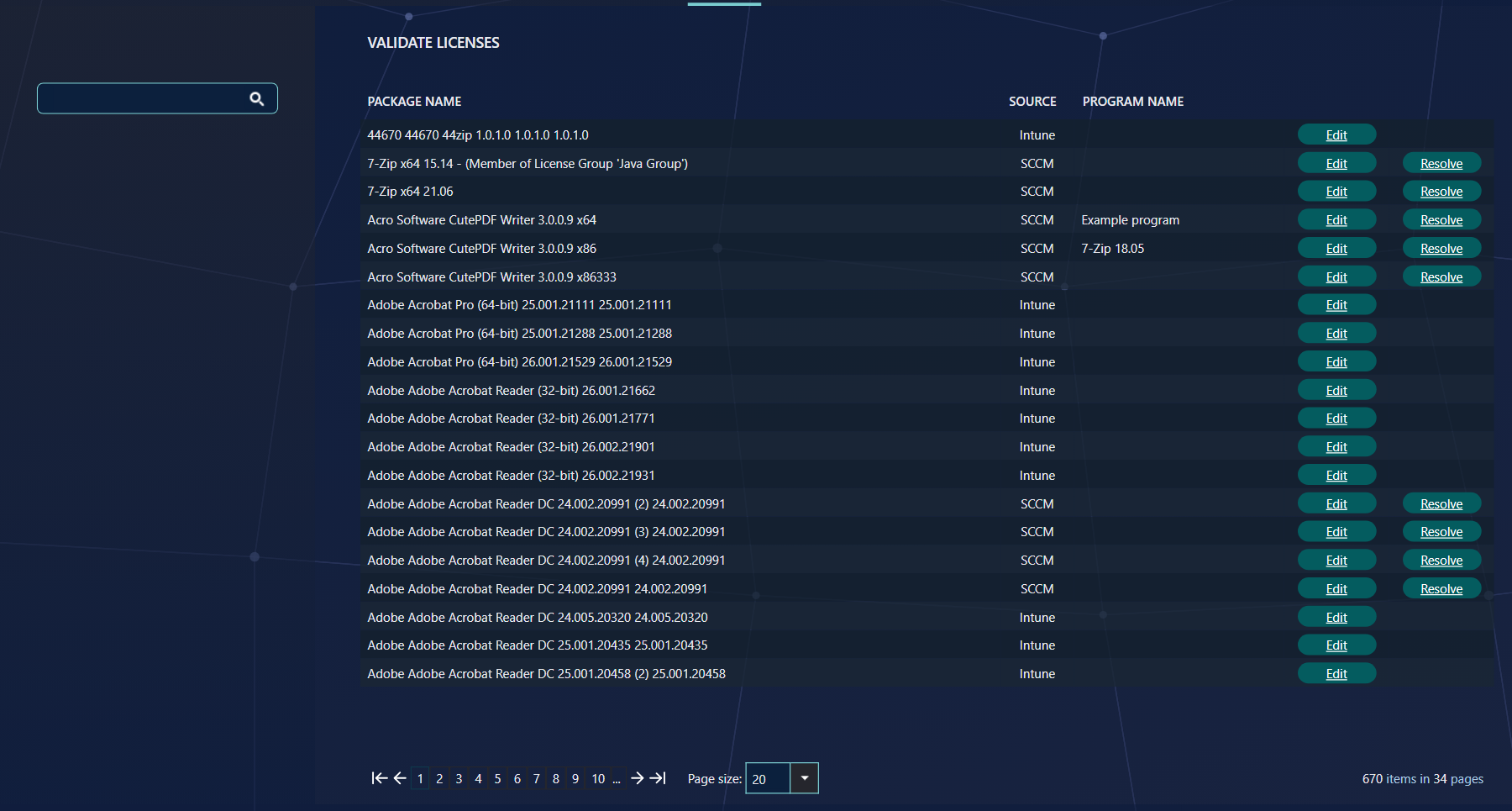
| Column | What it tells you |
|---|---|
| Package Name | The package. The first column shows the package name. |
| Source | SCCM or Intune. Only SCCM packages can be resolved. |
| Program Name | The Add/Remove Program name that is already entered for the package in SoftwareCentral. The column is empty until you add one. |
| Edit | Opens the window where you enter or browse for the Add/Remove Program name (section 2). |
| Resolve | Synchronizes the package with the SCCM (section 3). Not shown for Intune packages. |
To find a package, type part of its name in the search box and press Enter. Each value narrows the list. The list is shown in pages of 20, 50 or 100 packages.
2 Add or change a program name
Click Edit on the package. Enter the program name directly, or browse to it on a computer where the program is already installed.
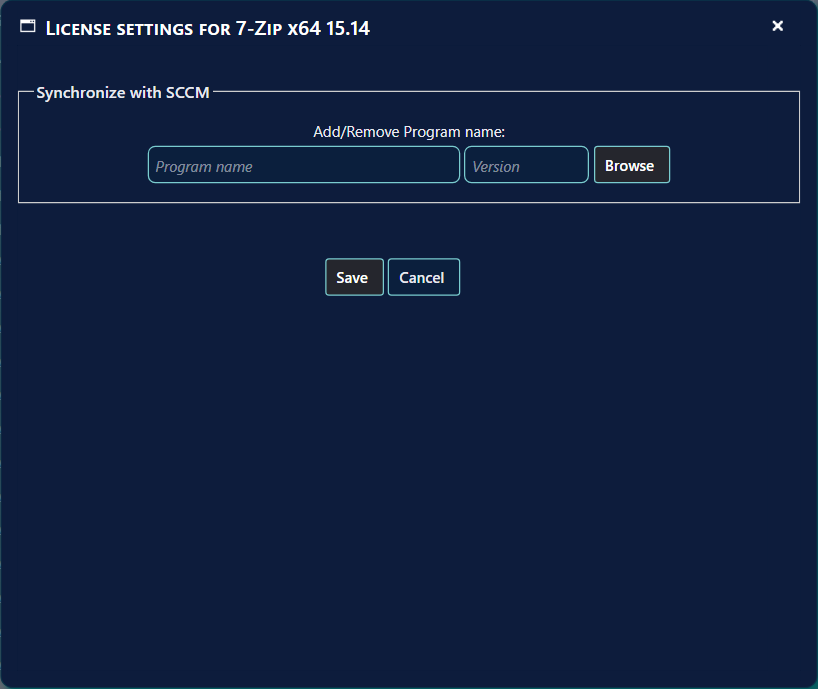
| Button or box | What it does |
|---|---|
| Add/Remove Program name | The name the program has in Add/Remove Programs on the computers where it is installed. |
| Version | The version of the program. |
| Browse | Opens the browse window (below). |
| Save | Stores the name and the version for the package, and closes the window. |
| Cancel | Closes the window without saving. |
Browse for a program name
When browsing to a program, a new window opens. Select a computer where the program is installed in Select computer to browse from, and locate the program name in the list. If the list is empty or the program was recently installed, use the Use WMI button to pull the data directly from the client.
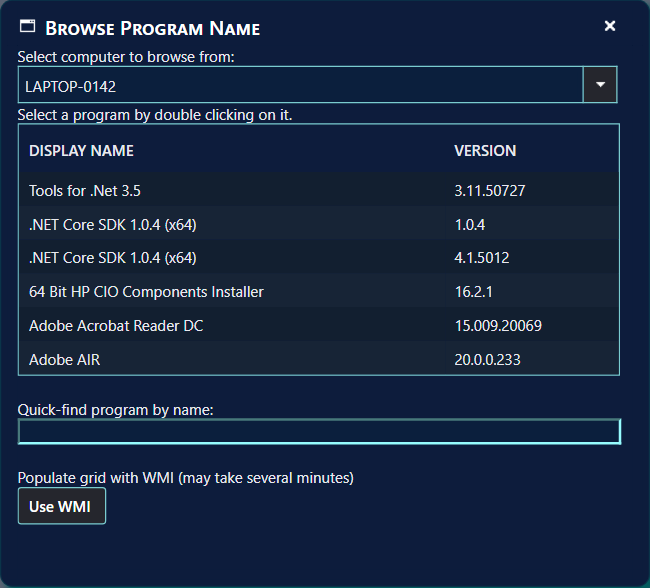
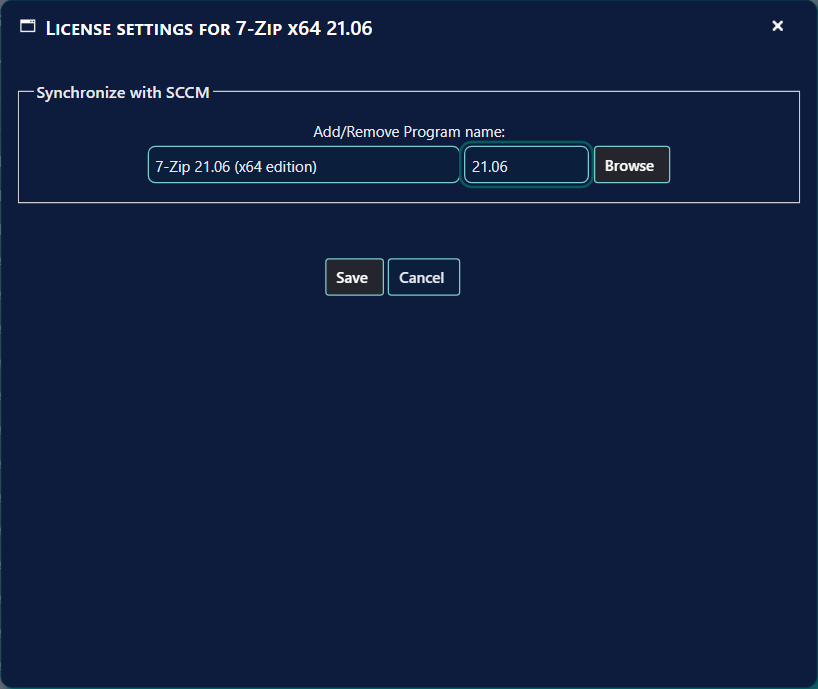
Double-click on the program name to load it to the previous window. The name and the version are copied into the License settings window. Then click Save.
3 Resolve with the SCCM
Once the program name is selected, use the Resolve button to synchronize with the SCCM.
A package without a program name cannot be resolved; see the troubleshooting table.
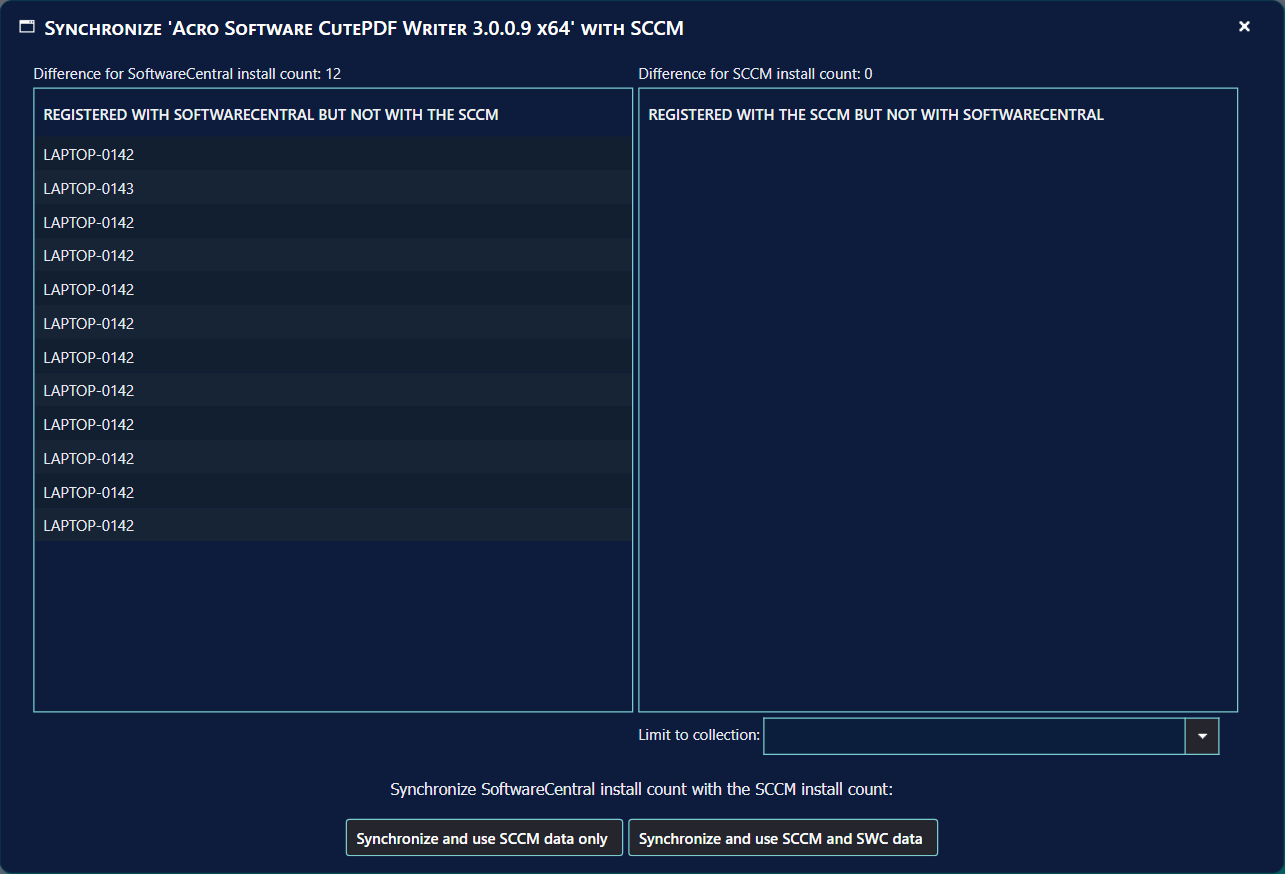
The column to the left displays installations that are registered in SoftwareCentral but not in the SCCM. This can for example be a program that is deployed, but not yet installed.
The column to the right displays installations that are registered with the SCCM but not in SoftwareCentral. This can for example be a program deployed prior to the implementation of the license module, or installations made outside of SoftwareCentral.
The drop-down box Limit to collection can be used to only look for installations in a given collection. This information is not stored and must be reselected the next time synchronization is necessary. When the installation has a collection limit set, the window opens with that collection selected.
Then choose one of the two buttons:
| Button | What it does |
|---|---|
| Synchronize and use SCCM data only | Removes the computers from the left column and adds the computers from the right column to the SoftwareCentral database. Its tooltip says “This will override all data registered with SoftwareCentral”. |
| Synchronize and use SCCM and SWC data | Adds the computers from the right column to the SoftwareCentral database and keeps the computers in the left column. Its tooltip says “This will add machines registered with the SCCM to the SoftwareCentral database”. |
4 Synchronize every night
Administrators can tick Synchronize with the SCCM every night under Settings › Extra Modules › License Module. It is off by default.
When it is on, SoftwareCentral adds the computers from the right column to the database every night, for every SCCM package that has a license, and lowers the licenses left to match. The members of a license group are synchronized one by one. Intune applications are not included. The synchronization runs before the license reminder mails are sent, so the mails use the corrected count.
The nightly synchronization works like Synchronize and use SCCM and SWC data: it never removes computers from the left column. If a collection limit is set for your installation, only computers in that collection are added.
5 Best practice
- Enter the Add/Remove Program name before you resolve. Without it the window refuses to synchronize the package.
- Synchronize each package in a license group separately. The grid lists every member on its own, and the nightly run does the same.
- Use Limit to collection when only some computers are licensed. The nightly synchronization uses the same collection limit.
- Use “Synchronize and use SCCM data only” only when the SCCM is the right source. Its tooltip says it overrides all data registered with SoftwareCentral.
- Check the counts by hand before you turn on the nightly synchronization. It applies the same rules every night, so a wrong count is corrected the same way each time.
6 Troubleshooting
| Symptom | Cause | What to do |
|---|---|---|
| “Cannot synchronize this package with the SCCM - No Add/Remove program is registered.” | No program name is stored for the package. The Synchronize buttons are disabled. | Click Edit, enter the Add/Remove Program name, click Save, then click Resolve again. |
| “Failed to synchronized the SoftwareCentral database with the SCCM database for package 'name'.” | An error stopped the change. The message is written to the log as a critical entry, with the error. | Open the Log and read the entry for the error. Check that the SCCM server can be reached, then try again. |
| “No programs found for this computer.” | The computer you chose in Browse has no Add/Remove programs in the SCCM. | Choose another computer where the program is installed, or use Use WMI. |
| “No packages match your criteria” | The search values match no package. | Click the × on a search value, or change the words. |
| There is no Resolve link on a package. | The package is an Intune application. Intune applications are not synchronized with the SCCM, and the nightly synchronization skips them. | Nothing to do for this package. |
| The page shows an access denied error. | The page is only available when the license module is enabled. | Ask your SoftwareCentral supplier whether your license includes the license module. |